
User traffic logging is enabled by default in
HSNM. However, you can configure how logs
are recorded for each gateway using the Enable Log
field in the gateway configuration.
➜ System Level
Configure connection logging globally at the system level.
➜ Gateway Level
Configure connection logging individually for a specific
network (gateway).
Traffic logs can also be configured for a specific network (gateway).
From the menu, open the gateway management section.
Scroll down to Syslog and expand it.
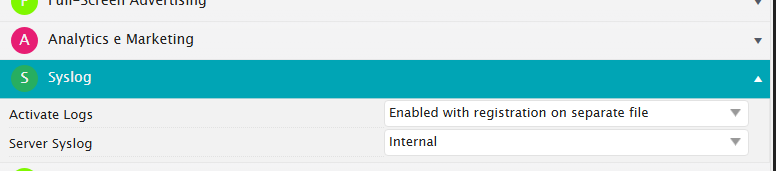
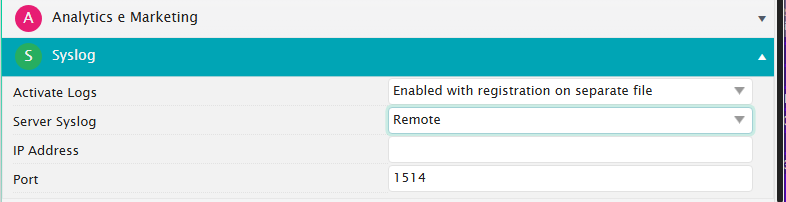
Gateways send traffic logs to HSNM through port 1514, rather than the standard syslog port 514.
Make sure port 1514 is open for both TCP and UDP traffic in your firewall to ensure that logs are correctly transmitted to HSNM.
Depending on the configuration, log files can be accessed from two locations:
➜ Admin tab → User Traffic Log
Displays all log files received from gateways across the system.
➜ Gateway → User Traffic Logs
Displays logs for the selected gateway. This section is available only when
Enabled with Separate Recording is selected.
If multiple HSNM systems are configured in a round-robin setup, traffic logs may be distributed across different HSNM instances.
In this case, you must access each HSNM instance individually to retrieve the complete set of traffic logs.