Gateway & AP – Set-Up Guide
Configuring Pepwave

This chapter describes how to configure the Pepwave gateway
Before proceeding further with the configuration, you need to configure HSNM with a domain and a gateway as described in Adding a New Gateway.

Prerequisites

The prerequisites required for configuration are:

  • Access to the inControl 2
  • Pepwave gateway adopted in the inControl 2
  • Pepwave updated with the firmware >= 8.2.1
  • HSNM version >= 9.3.x
  • HSNM gateway configured with PepLink (Pepwave) in the Hardware Type

Configuring the Radius and Accounting Server

Step 1

Log in to the Pepwave InController 2 interface.

Step 2

In the middle of the page, in the Group session, click the group level’s name to expand the various tabs.

Step 3

Then move to Network Settings > Captive Portals and click Add an External Captive Portal.
Enter the details as follows
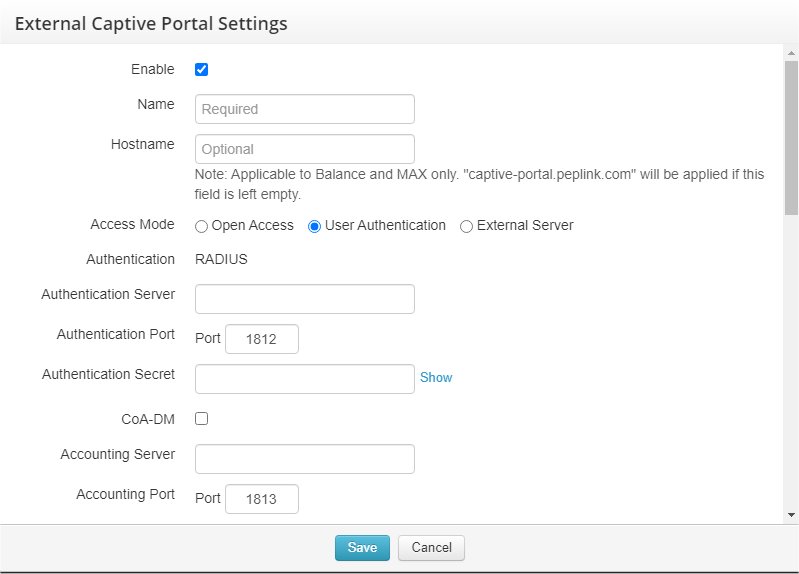
  • Enable–Tick it
  • Name–Edit the name
  • Access Mode–Tick User Authentication
  • Authentication Server–Type the IP of the HSNM platform
  • Authentication Port–Edit 1812
  • Authentication Secret–Digit the radius secret of the HSNM platform
  • Accounting Server–Type the IP of the HSNM platform
  • Accounting Port–Edit 1813
  • Accounting Secret–Digit the radius secret of the HSNM platform
  • Profile MAC Address–Tick LAN MAC Address
  • NAS-Identifier–Select LAN MAC Address
  • Session Timeout–Edit 60 minutes
  • Allowed Networks–Add one by one the IP addresses or domains downloaded from your HSNM
  • Splash Page URL–Specify the Welcome Portal URL in the following format: http(s)://FQDN_OF_YOUR_PORTAL/gatewayid/ID_OF_YOUR_GATEWAY where the ID_OF_YOUR_GATEWAY stands for the ID you can find in your ’s Gateway.

Step 4

Click Save to save the entries.

To know the accurate and relevant Walled Garden, you need to add one by one, access your HSNM platform and click the contextual dropdown menu of your gateway. Select Download Walled Garden to get a .txt file with your accurate walled garden list as shown Figure Download Walled Garden.
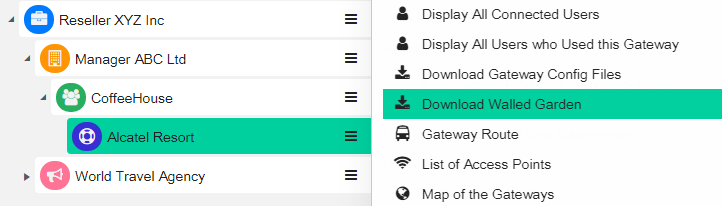
Figure Download Walled Garden

Configuring the SSID

Step 1

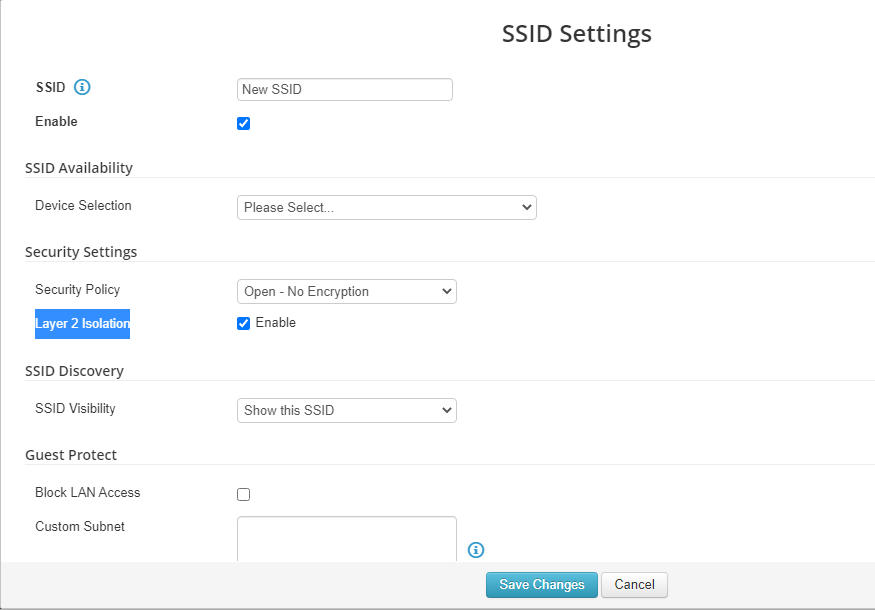
Now move to Wi-Fi Ap> Group-wide SSID Settings and click the Add new SSID button.

Step 2

Enter the details as follows:

  • SSID–Edit a SSID name
  • Enable–Tick it

Security Settings

  • Security Policy–Select Open – No Encryption
  • Layer 2 Isolation–Tick Enable

Step5

Click Save Changes to save the entries.

Configuring the WLAN

Step 1

Move back to Network Settings > VLAN Networks and then select Untagged LAN.
Enter the details as follows

Settings for Balance and MAX

  • Inter-VLAN Routing–Tick it
  • Captive Portal–Select the captive portal created earlier

DHCP Server Settings for Balance and MAX
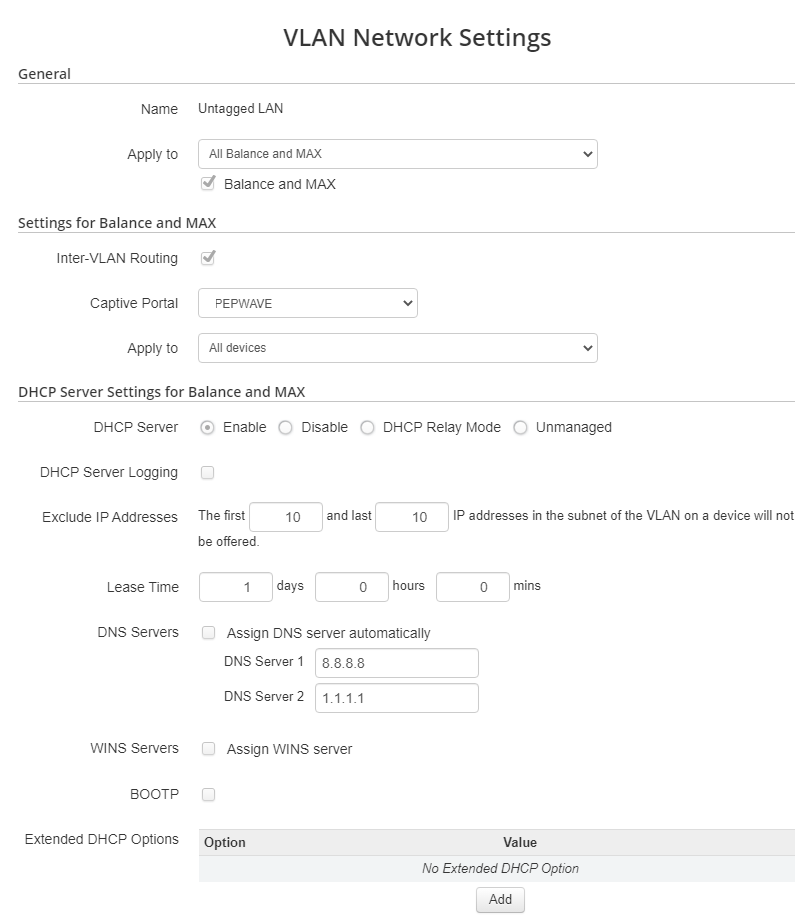
  • DHCP Server–Tick Enable
  • Lease Time–We suggest entering 1 day
  • DNS Servers–Untick it
  • DNS Server 1–Type a value of your choice, for example 8.8.8.8.
  • DNS Server 2–Type a value of your choice, for example 1.1.1.1.
  • WINS Servers– Untick it

Step 6

Click Save to save the entries.

Configuring the Bandwidth Limit

Step 1

To complete the set up, you need to move to Dashboard> Devices and then click on the name of your device.

Step 2

From the tab, select Settings > Remote Web Admin.

Step 3

Then from the top menu, select Advanced.

Step 4

From the menu on the left, scroll down till QoS, then click Bandwidth Control.

Step 5

Under Individual Bandwidth Limit, flag Enable.
Enabling it will allow you to set up speed values via radius attributes.
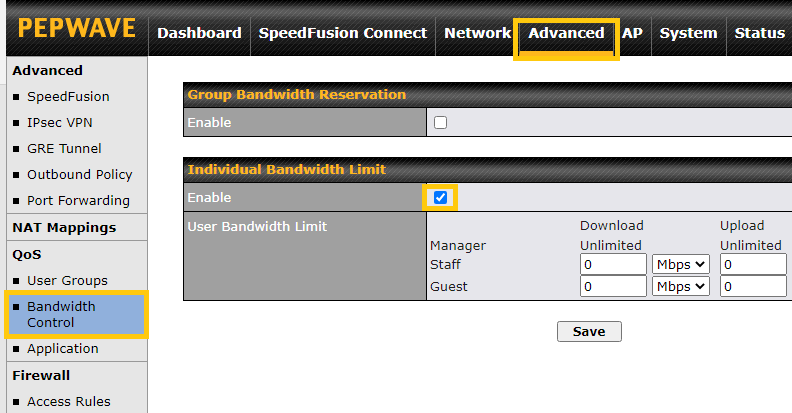
Step 6

Click Save to save the entries.

The configuration is now complete.